
Jailbreaking my 2012 Kindle Paperwhite
Update Septmber 2026: I’ve changed the wording of a few steps based on feedback in the comments.
I usually prefer to read paper books and get them from my local library when I can, but I have an old Kindle Paperwhite that I generally load up with books to read while travelling. It saves a lot of hassle, bulk and weight compared to carrying around several paperbacks.
I had previously looked into custom Kindle firmware and found people saying that such things don’t exist, but with Amazon pulling support for old Kindles I had another look and realised that I’d missed something: There may not be fully custom firmware for Kindles, but there is jailbreaks and custom software. I took me a while to get it working, navigating various Mobile Read forum threads to piece together steps that worked and now that I have KOReader up and running (and can therefore finally read EPUB files on my Kindle) I decided to write up the exact, reproducible steps that I took to get there.
Getting device information
The first thing you need is the serial number of your Kindle to determine the exact model type and compare it to the Mobile Read wiki page on Kindle serial numbers. You can get this on Amazon’s website while logged into the account that the Kindle is registered to or from the device itself.
Confusingly, on my Kindle you must access this by ☰Menu button, selecting Settings, then pressing the ☰Menu button again (which pops up a different menu when pressed from inside the settings screen) and then selecting Device Info. The wiki page does mention this too, but I missed it at first. The device info popup also has the firmware version, which for me was 5.6.1.1, which will also be important.
In my case the serial number starts with B024. Amazon’s site describes it as “Kindle Paperwhite (5th Generation)” and the Mobile Read wiki calls it “Kindle PaperWhite WiFi”, but more importantly the nickname that is used in Mobile Read’s guides is PW (or PW1), which was needed for figuring out which jailbreak I needed.
Grabbing the software
The jailbreak method I used for my PW1 only works for firmware version 5.0→5.4.4.2, while mine was 5.6.1.1. The jailbreak can’t be installed in version 5.6, but if it was previously installed it can be patched to work again. This meant that I had to downgrade the firmware, install the jailbreak, upgrade the firmware again, and then apply the upgrade patch to fix the jailbreak. And then I also needed the software I want to actually run on the Kindle afterwards, which in my case was KOReader, a Stardict dictionary for KOReader, and Kindle Unified Application Launcher (KUAL) to allow me to launch the reader in the first place.
These can all be grabbed here:
- Kindle firmware version 5.4.4.2
- Kindle firmware version 5.6.1.1
- K5 Jailbreak - Latest version at time of writing is
kindle-jailbreak-1.16.N-r19426.tar.xz - KUAL - Same link as the one above. Latest version at time of writing is
KUAL-v2.7.37-gfcb45b5-20250419.tar.xz - Jailbreak fix -
Update_hotfix_universal.bin - KOReader - For the PW1, the file labelled
koreader-kindle-v####.##.zip - Stardict English dictionary -
dict-en-en.zip(not the one labelled Kindle)
Factory reset (do not actually do this)
To ensure that these steps worked from a blank slate I repeated them after doing a factory reset on my Kindle. As Amazon are ending support for older Kindles if you do a factory reset after the 20th of May 2026 you will not be able to re-register your old Kindle and it will be effectively bricked. I intend to keep mine on permanent aeroplane mode from now on to ensure Amazon don’t do anything else funny to mess it up.
If Amazon haven’t turned off the servers yet and you are logging into an old Kindle and you have two-factor authentication enabled then login will fail if you try to log in with just your username and password, but you can append your six-digit authentication token to the end of your password and it should work.
Update Septmber 2026: Helen in the comments has said that this process did work after a factory reset. I have not verified this. Do at your own risk.
Installation
-
Getting ready
- If Amazon haven’t already turned off the servers then now is the time to download any books that you want to keep from your Amazon account onto the Kindle.
- Once that’s done enable aeroplane mode by navigating to ☰Menu→Settings→Aeroplane Mode.
-
Downgrade the firmware to 5.4.4
- Connect the Kindle to your computer with a Micro-USB cable, it should mount the same as an external drive or memory stick. If it doesn’t and only starts charging try using different Micro-USB cables until you have one that does data transfer.
- Copy
update_kindle_5.4.4.binto the root directory of the Kindle. - Without ejecting the Kindle or unplugging the USB cable hold down the power button of the Kindle until the charging light goes out and it unmounts from the PC. This took about twelve seconds for me.
- When you release the power button the Kindle should restart and begin installing the new firmware after a few seconds.
-
Install the jailbreak
- Once the firmware downgrade is finished and Kindle has restarted check that the downgrade was successful by going to ☰Menu→Settings→☰Menu→Device Info and ensuring the firmware version is now 5.4.4.2.
- Reconnect the Kindle to your PC.
- Extract the contents of
kindle-jailbreak-1.16.N-r19426.tar.xz. Within this is another compressed file calledkindle-5.4-jailbreak.zip. Unzip that second file and move its contents into the root directory of the Kindle. - Eject the Kindle from your PC and unplug the USB cable.
- Install the jailbreak from your Kindle by navigating ☰Menu→Settings→☰Menu→Update Your Kindle. If the option is greyed out make sure that aeroplane mode is on, reconnect your Kindle to your PC and double check that all the contents of
kindle-5.4-jailbreak.zip(includingUpdate_jb_$(cd mnt && cd us && sh jb.sh).bin) are still in the root directory of your Kindle (copy them over again if not) and try again. - If the jailbreak was successful then some text saying JAILBREAK should appear at the bottom of the screen.
-
Install KOReader and KUAL
- Reconnect the Kindle to your PC.
- Extract the contents of
koreader-kindle-v####.##.zipto the root directory of the Kindle. - On the Kindle create the directory
/koreader/data/dict/and extract the contents ofdict-en-en.zipto it. - From
KUAL-v2.7.37-gfcb45b5-20250419.tar.xzextractKUAL-KDK-2.0.azw2and copy it to/documents/in the Kindle root directory.
-
Upgrade back to 5.6.1.1
- Copy
update_kindle_5.6.1.1.binto the root directory of the Kindle. - Eject the Kindle from your PC and unplug the USB cable.
- Navigate to ☰Menu→Settings→☰Menu→Update Your Kindle and wait for the upgrade to install.
- Copy
-
Install the jailbreak hotfix
- Reconnect the Kindle to your PC.
- Copy
Update_hotfix_universal.binto the root directory of the Kindle. - Eject the Kindle from your PC and unplug the USB cable.
- Navigate to ☰Menu→Settings→☰Menu→Update Your Kindle one last time.
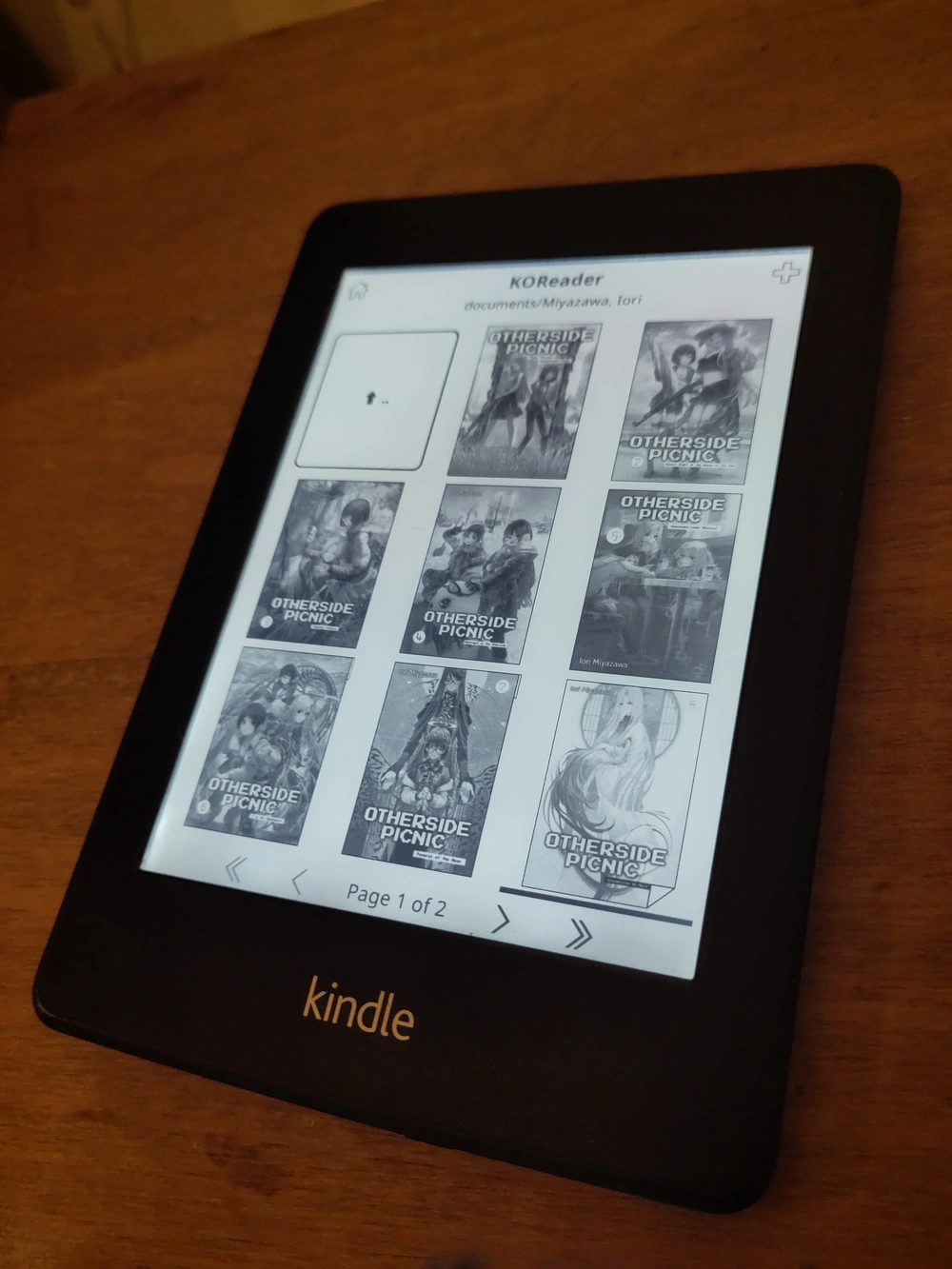
All going well there should now be a Kindle Launcher/KUAL entry on your Kindle homescreen amongst the books and when pressed should take you to a screen that will let you launch KOReader (or any other homebrew software that you install). KOReader itself should give you a file browser that you can use to read EPUBs, PDFs and other formats that your Kindle couldn’t natively. You can transfer books over just by copying them over with a USB cable the same way as any other file.
I use Calibre to organise my e-books and it can handle transferring them over to the Kindle too, though by default it only sends books in formats the Kindle can natively read. You can change what formats it will transfer over as well as the folder structure it uses from the settings for the Kindle plugin under Preferences→Plugins.